Ordr, inside your AI assistant
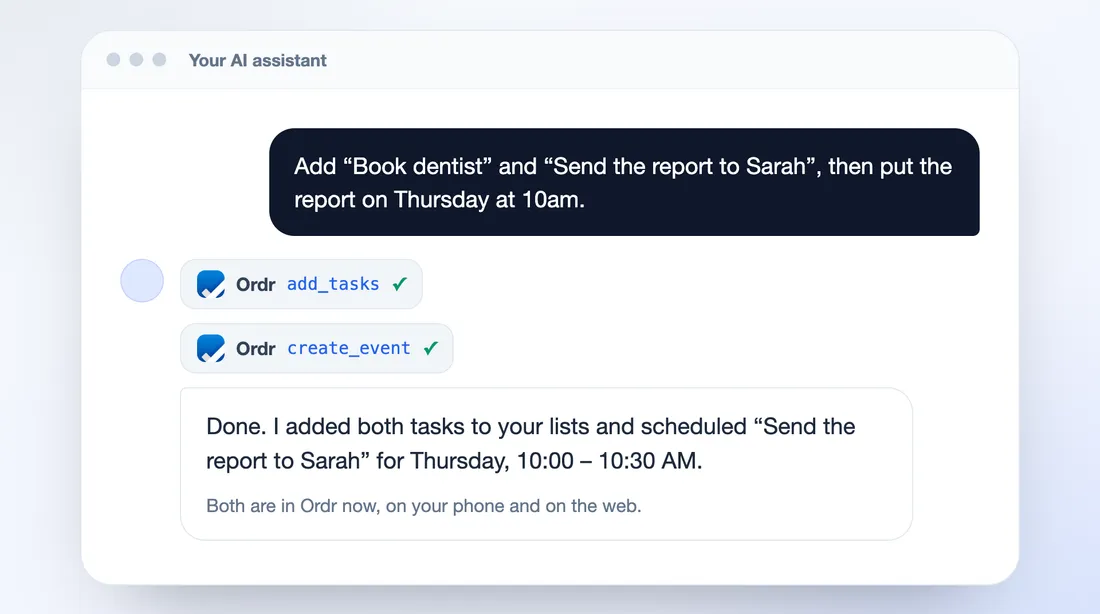
Connect Claude, ChatGPT, Grok, Cursor, Instinct or any assistant that supports MCP to your Ordr lists and Timeline. Ask it to add tasks, tick things off, or schedule your week.
Free on every plan · Doesn’t use your Ordr AI actions
Connect in a minute
How to connect Ordr
Copy the server address
It’s the same address for every assistant:
https://mcp.useordr.app/mcp Add it to your assistant
In Claude, open Settings, then Connectors, then Add custom connector, and paste the address. In other assistants, add a remote MCP server with the same address.
Sign in and approve
Sign in to Ordr with your email, Google or Apple account, then approve the connection. Ordr shows you exactly what the assistant will be able to do.
If your app only supports local MCP servers, use the mcp-remote bridge:
npx mcp-remote https://mcp.useordr.app/mcp. Signing in with an email link? Open the link in the same browser you started from.
Things to ask
Just say what you need
“What’s on my list for today?”
Reads your lists and Timeline.
“Add milk, eggs and coffee to my groceries.”
Adds tasks to the right list.
“Break ‘plan the launch’ into small steps and add them to Work.”
The assistant plans it, Ordr keeps it.
“Move my 3pm to Friday morning.”
Reschedules one event or a whole series.
“Tick off the report and show me what’s left.”
Completes tasks and reads what remains.
“Block two hours for deep work tomorrow at 9.”
Creates a Timeline event.
What it can do
Ten tools, one account
The connection signs in as you and follows the same rules as the Ordr app. It has no AI features of its own, because your assistant brings those.
See your lists
Your lists, including shared ones, with open-task counts, and any single list with its tasks and subtasks.
Add and edit tasks
Add tasks and subtasks, set a due time, duration or reminder, change them, and mark them done or reopen them.
Read your Timeline
Your scheduled events for any time range, with repeating events expanded.
Schedule and reschedule
Schedule a task, or create one and schedule it. Move, resize or change a repeat for one occurrence, this and future ones, or the whole series.
Remove things
Delete a task, or remove one event, the rest of a series, or all of it. Deletes can’t be undone from here.
Your data, your call
What you’re agreeing to
- Connecting is optional and starts with you approving it. Ordr names the assistant and says what it can do before you continue.
- The assistant can read and change your task lists and Timeline. It can’t see your payment details or delete your account.
- Deleting a task or event can’t be undone from the connection. Assistants are asked to confirm first.
- Anything your assistant reads from Ordr is handled by that assistant under its provider’s own privacy terms.
More in the privacy policy.
FAQ
Connection questions
What is MCP?
The Model Context Protocol (MCP) is an open standard that lets AI assistants use other apps through a safe, permissioned connection. Once you connect Ordr, your assistant can look at your lists and Timeline and make changes you ask for.
Is connecting Ordr to my AI assistant free?
Yes. The connection is open to every Ordr account, Free or Pro. You may need a plan with your AI assistant that supports custom connectors; check with that provider.
Does it use my Ordr AI actions?
No. Ordr’s connection only reads and edits your data. Your assistant does the thinking, such as breaking a goal into steps or choosing a time, so none of Ordr’s own AI features run and your Ordr AI actions aren’t used.
Which assistants work with it?
Any assistant that supports remote MCP servers with sign-in, including Claude, ChatGPT, Grok, Cursor and Instinct. The server address is the same everywhere. If your app only supports local MCP servers, the mcp-remote bridge can connect it to the same address.
Can I use Ordr with Claude?
Yes. In Claude, open Settings, then Connectors, then Add custom connector, paste https://mcp.useordr.app/mcp, and sign in to Ordr when asked. Claude can then read and manage your lists and Timeline.
Can I use Ordr with ChatGPT?
Yes, if your ChatGPT plan supports custom MCP connectors. Add https://mcp.useordr.app/mcp as a remote MCP server in ChatGPT’s connector settings and sign in to Ordr. Menu names change, so check OpenAI’s current instructions for adding a custom connector.
Can I use Ordr with Grok?
Yes, wherever Grok lets you add a remote MCP server. Use https://mcp.useordr.app/mcp as the server address and sign in to Ordr when asked. Menu names change, so check xAI’s current instructions for adding an MCP server.
Can I use Ordr with Cursor?
Yes. Add https://mcp.useordr.app/mcp as a remote MCP server in Cursor’s MCP settings and sign in to Ordr. Then you can ask Cursor to add tasks, check them off or schedule time without leaving your editor.
Can I use Ordr with Instinct?
Yes, wherever Instinct lets you add a remote MCP server. Use https://mcp.useordr.app/mcp as the server address and sign in to Ordr when asked.
What can the assistant see and change?
It can read and change your task lists and your Timeline: add, edit, complete and delete tasks and events. It can’t see your payment details or delete your account. Deleting a task or event can’t be undone from the connection, so assistants are asked to confirm before they delete.
It asked me to reconnect. Why?
Your Ordr sign-in can expire, for example if you sign out of Ordr everywhere. Add the connection again and sign in with the same email, Google or Apple account. If you sign in with an email link, open that link in the same browser you started the connection from.
Let your assistant keep the list
Create an Ordr account, then add the connection. It takes about a minute.